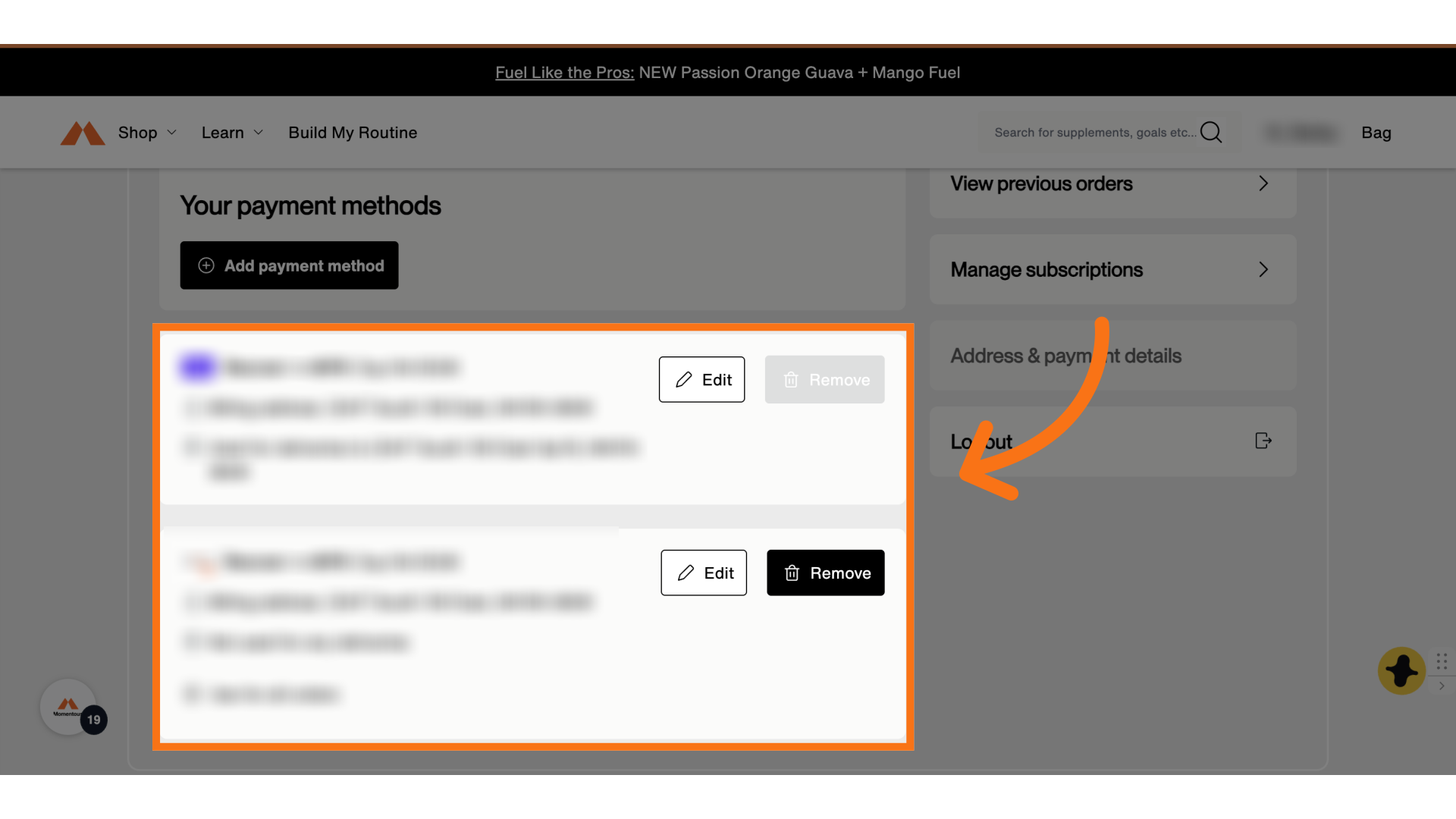
You can add payment methods and remove payment methods for your subscription anytime.
Mobile
How to update your billing information on your phone.
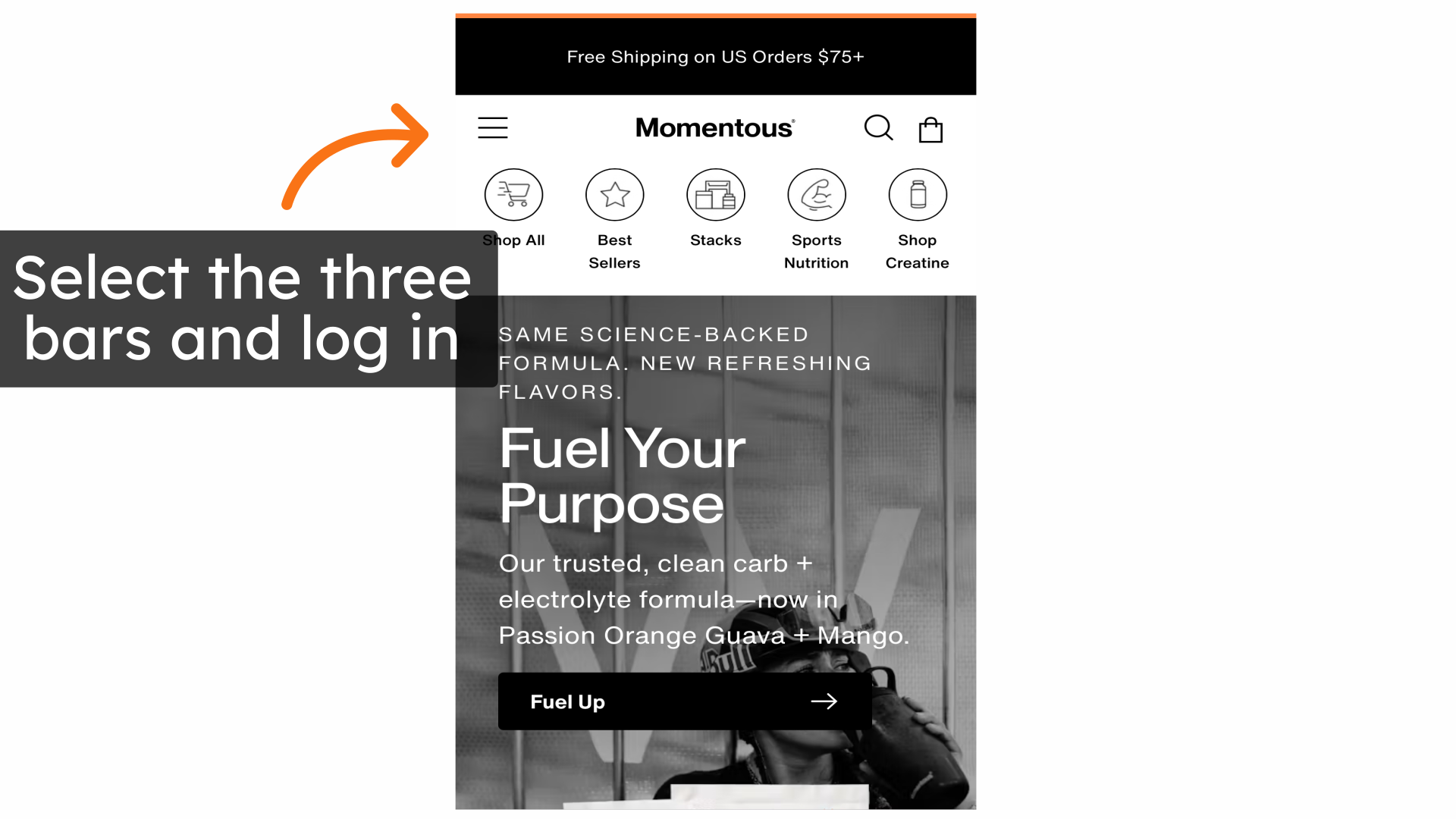
1. Select the three bars and log in
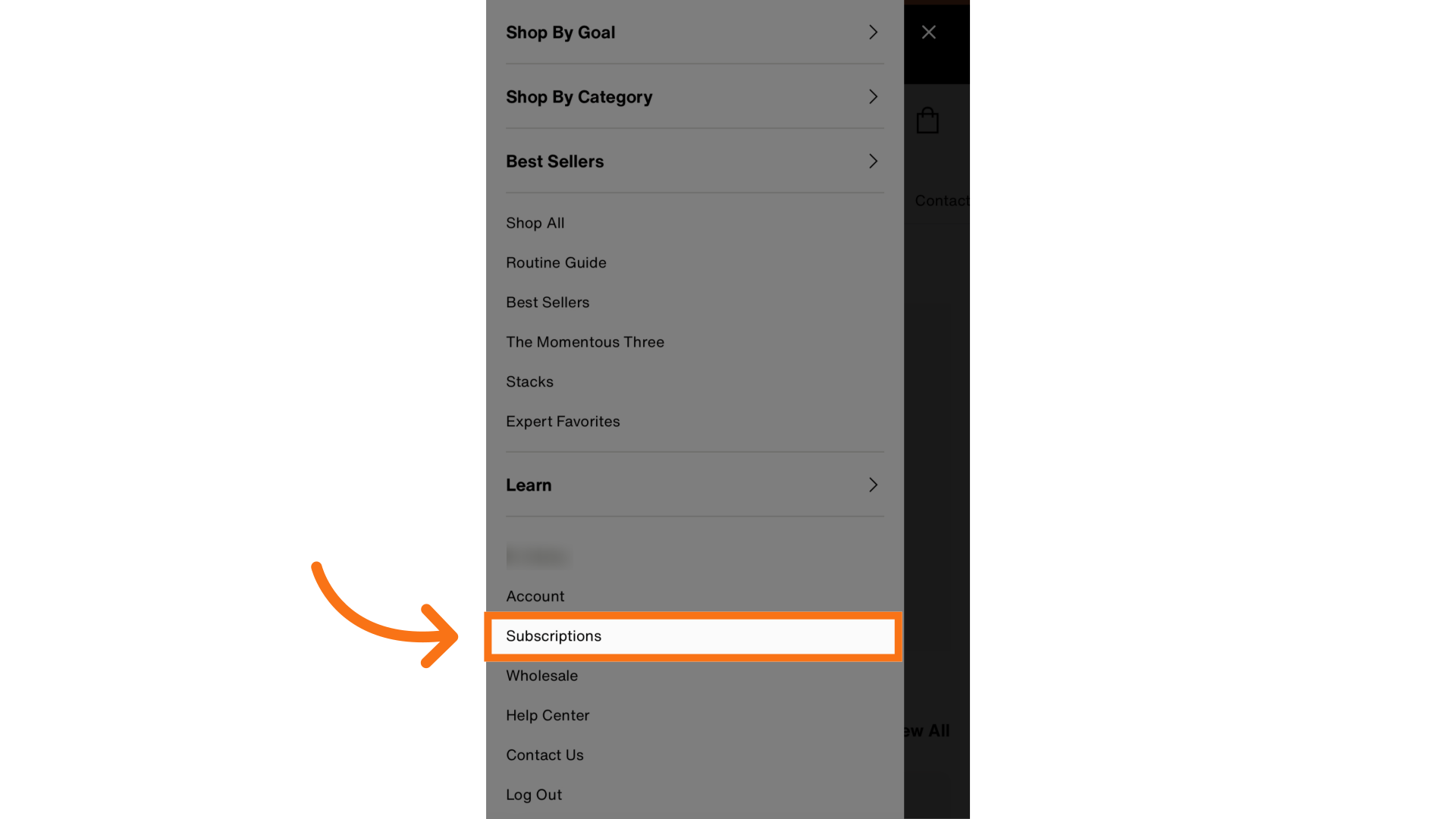
2. Click "Subscriptions
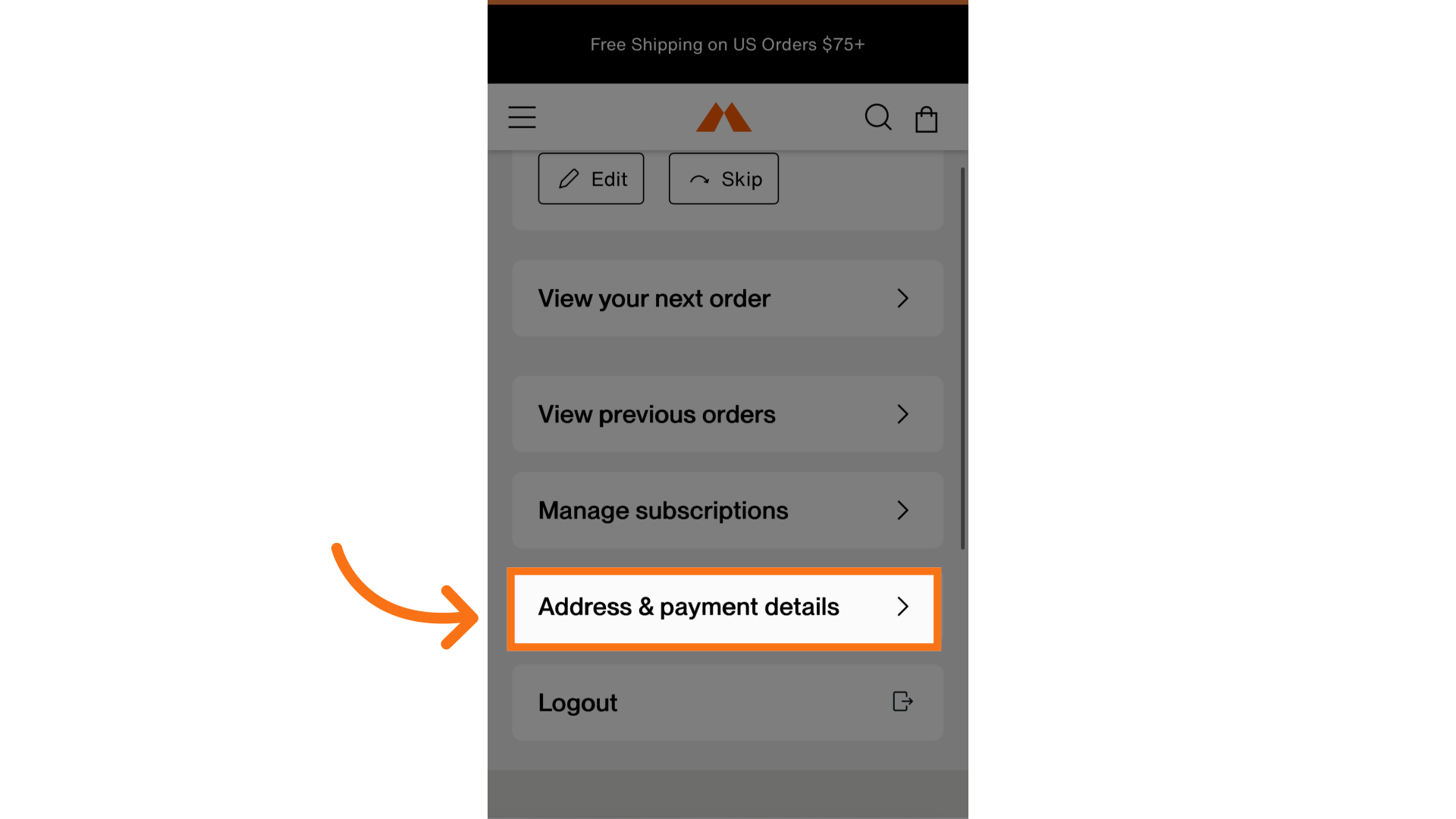
3. Click "Address & Payment Details
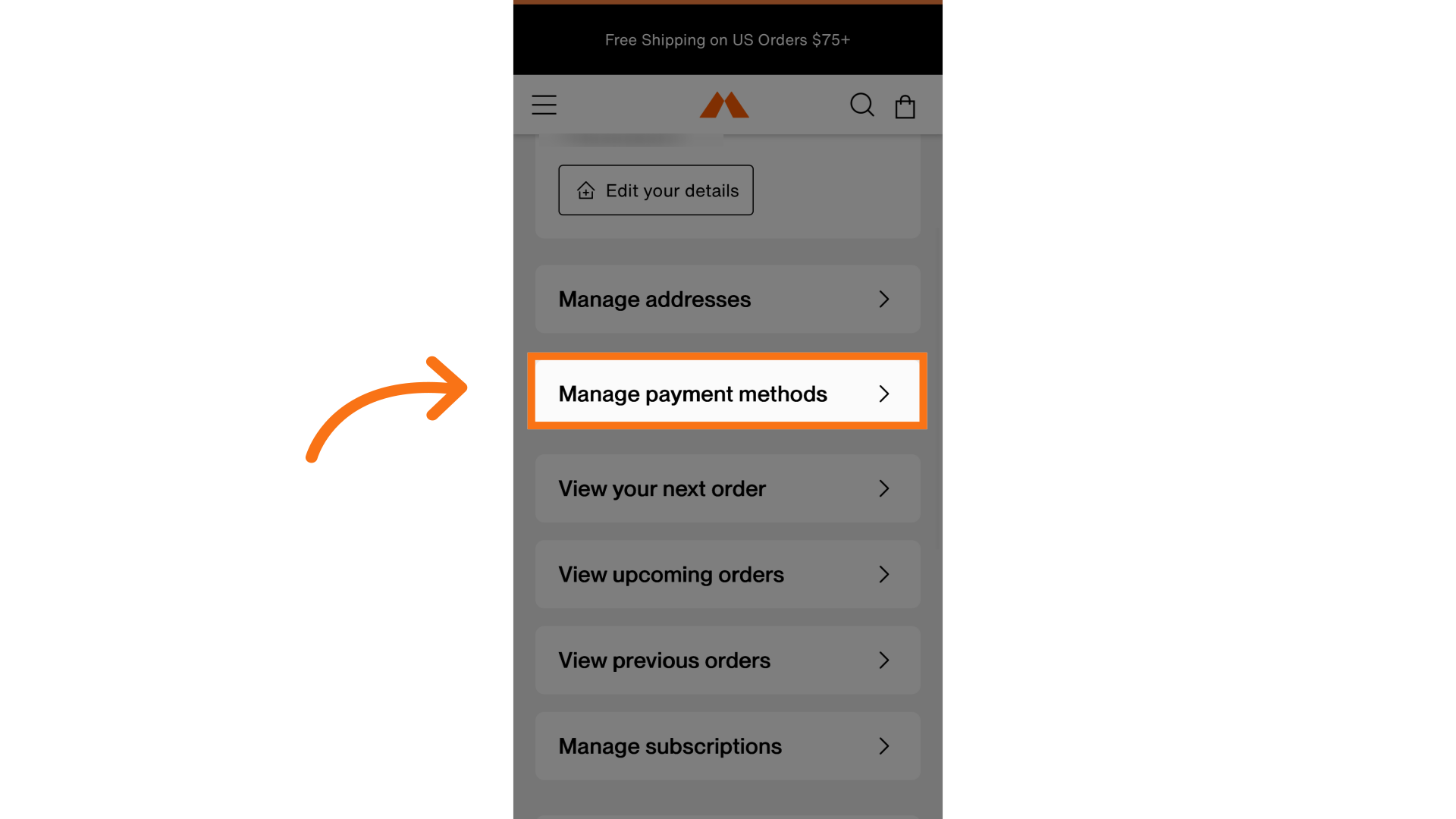
4. Click "Manage Payment Methods"
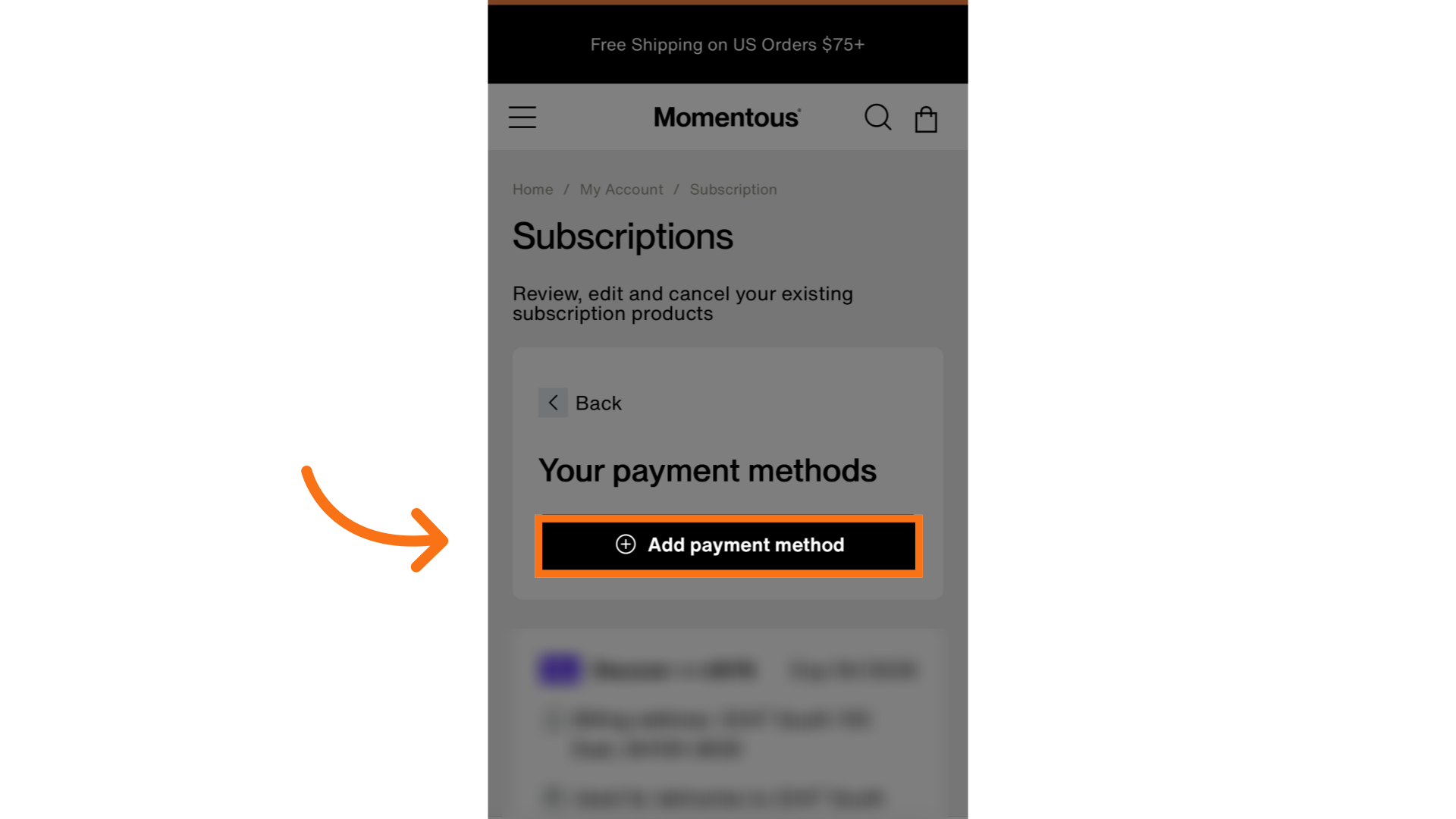
5. Click "Add payment method"
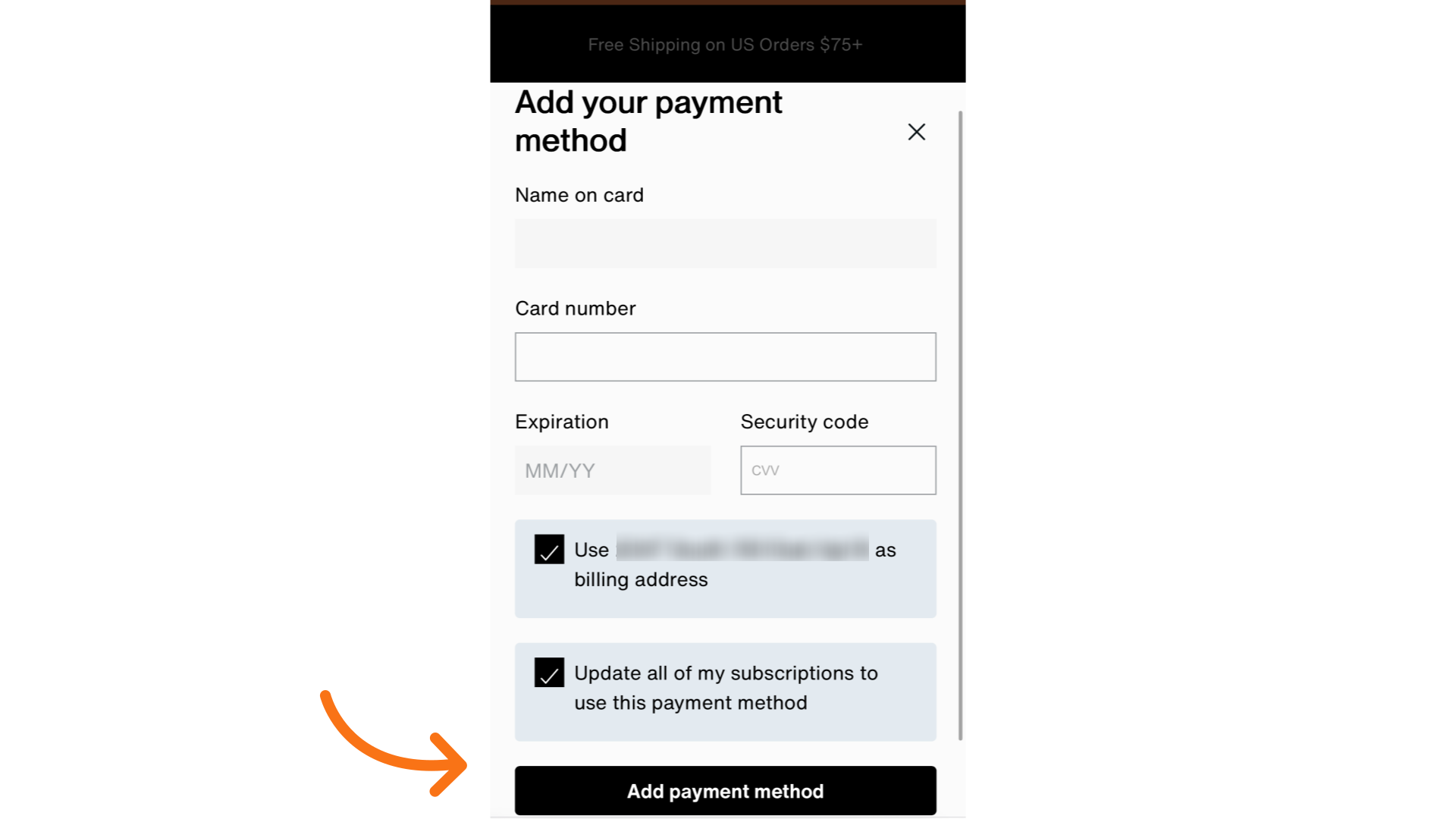
6. Fill out the information then select "Add payment method"
Fill out the information, check the two boxes for the billing address and to apply it to your subscription. Then select add payment method. DON'T FORGET to include the 'Name on Card' detail section, as this is required to move onto the next page.
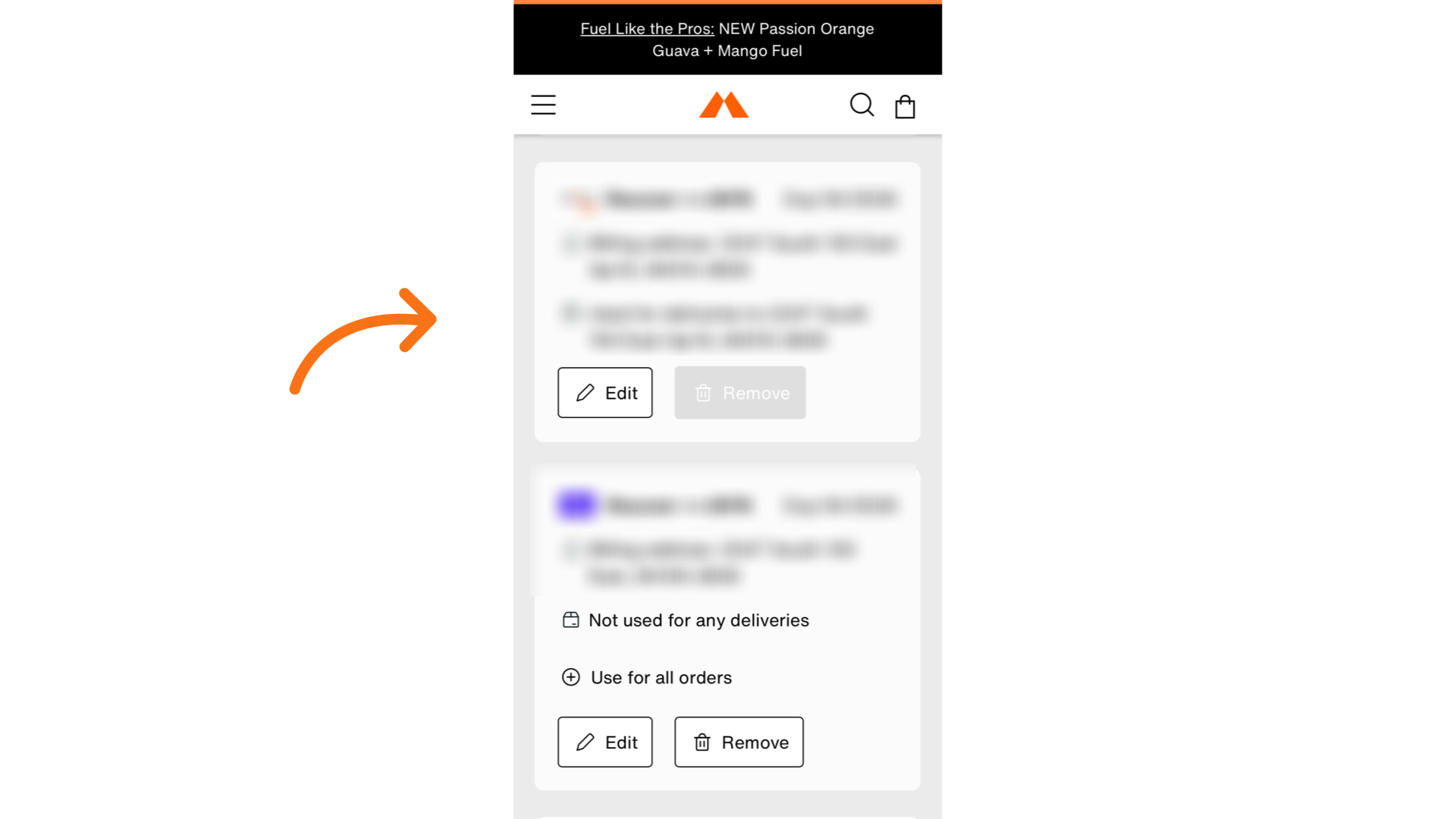
7. You can see your new payment method at the top
Desktop
How to update your billing information.
1. Log in and select your name
This will drop down a menu.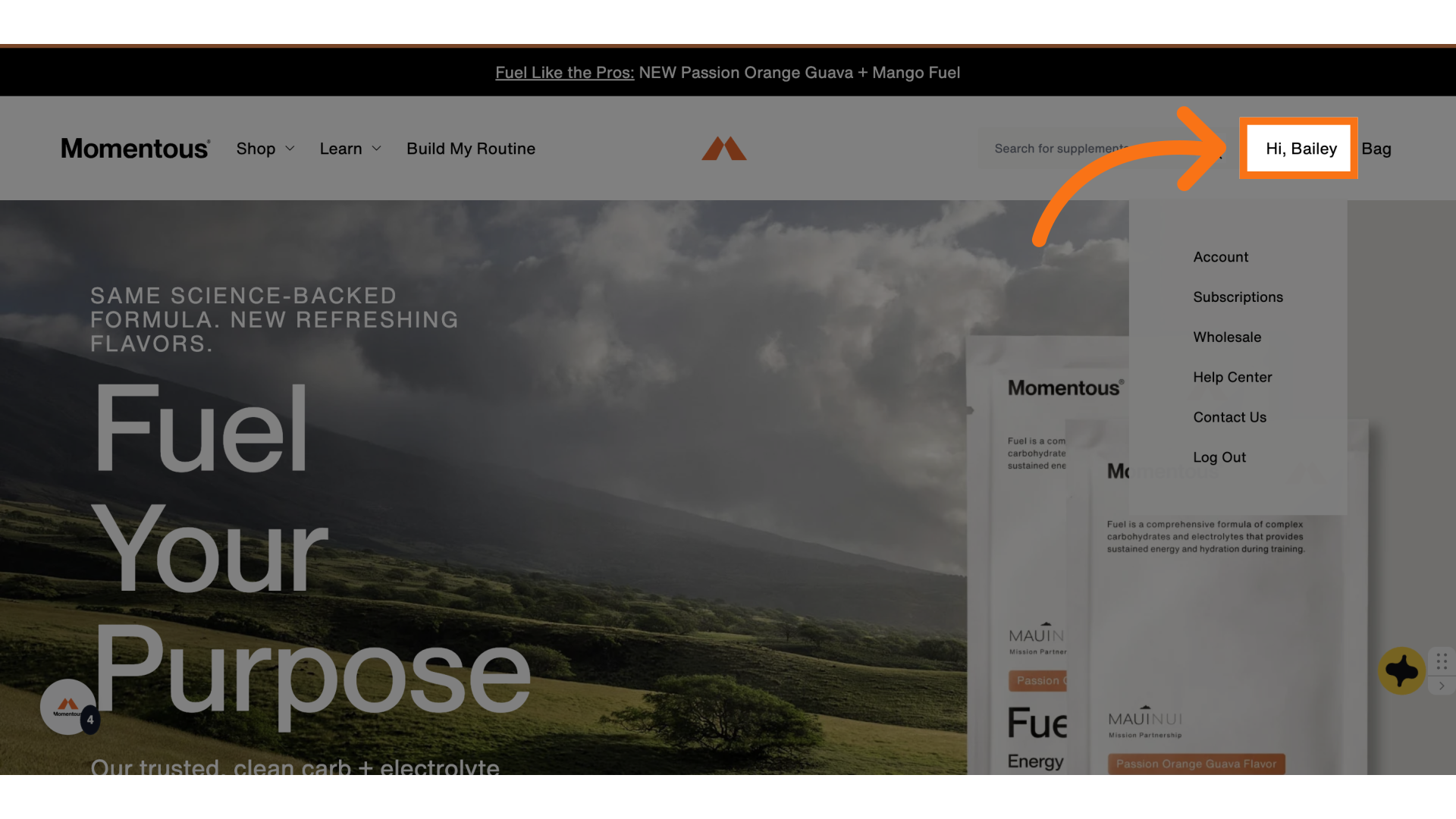 2. Click "Subscriptions"
2. Click "Subscriptions"
3. Click "Address & payment details"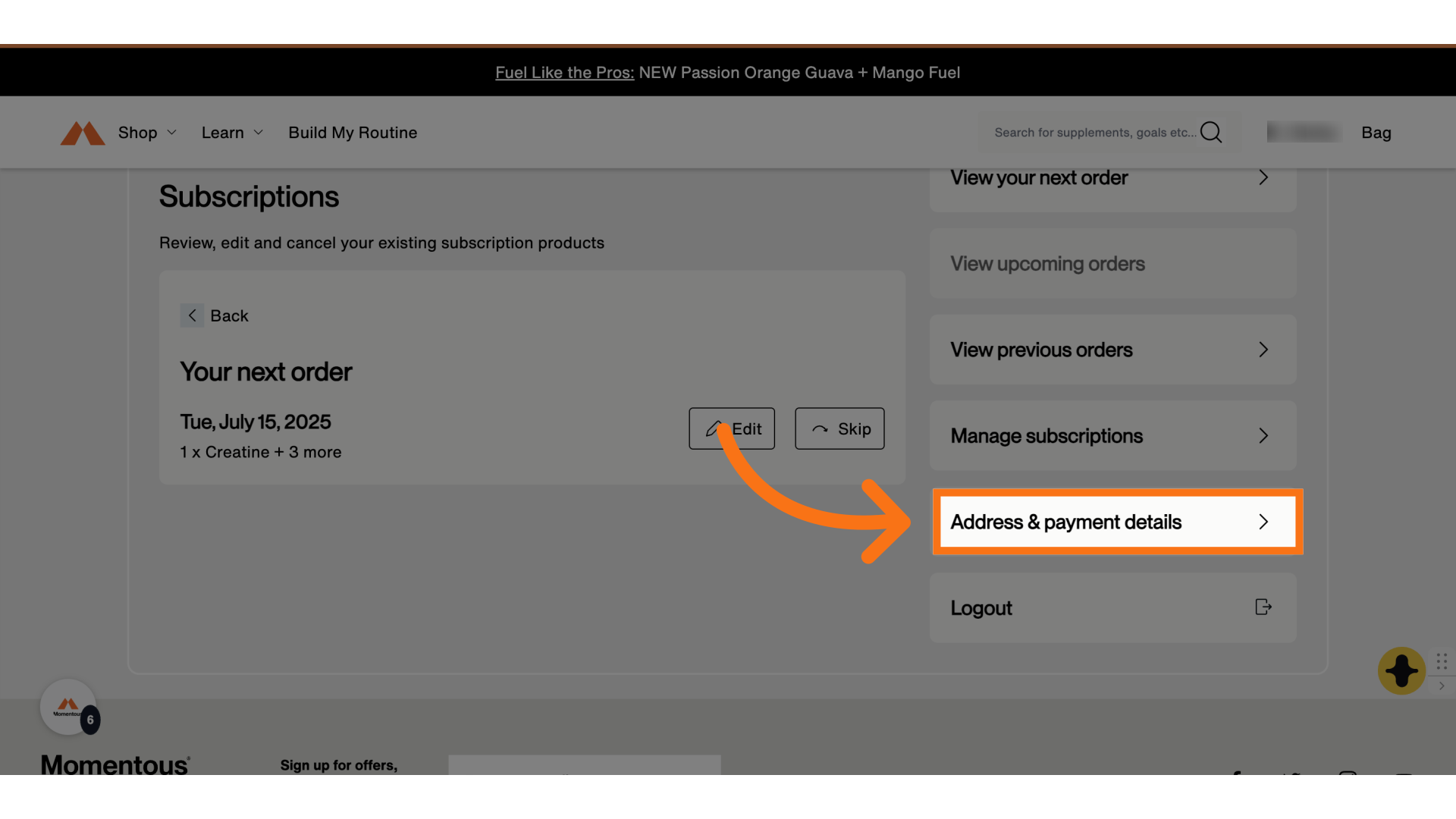
4. Click "Manage payment methods"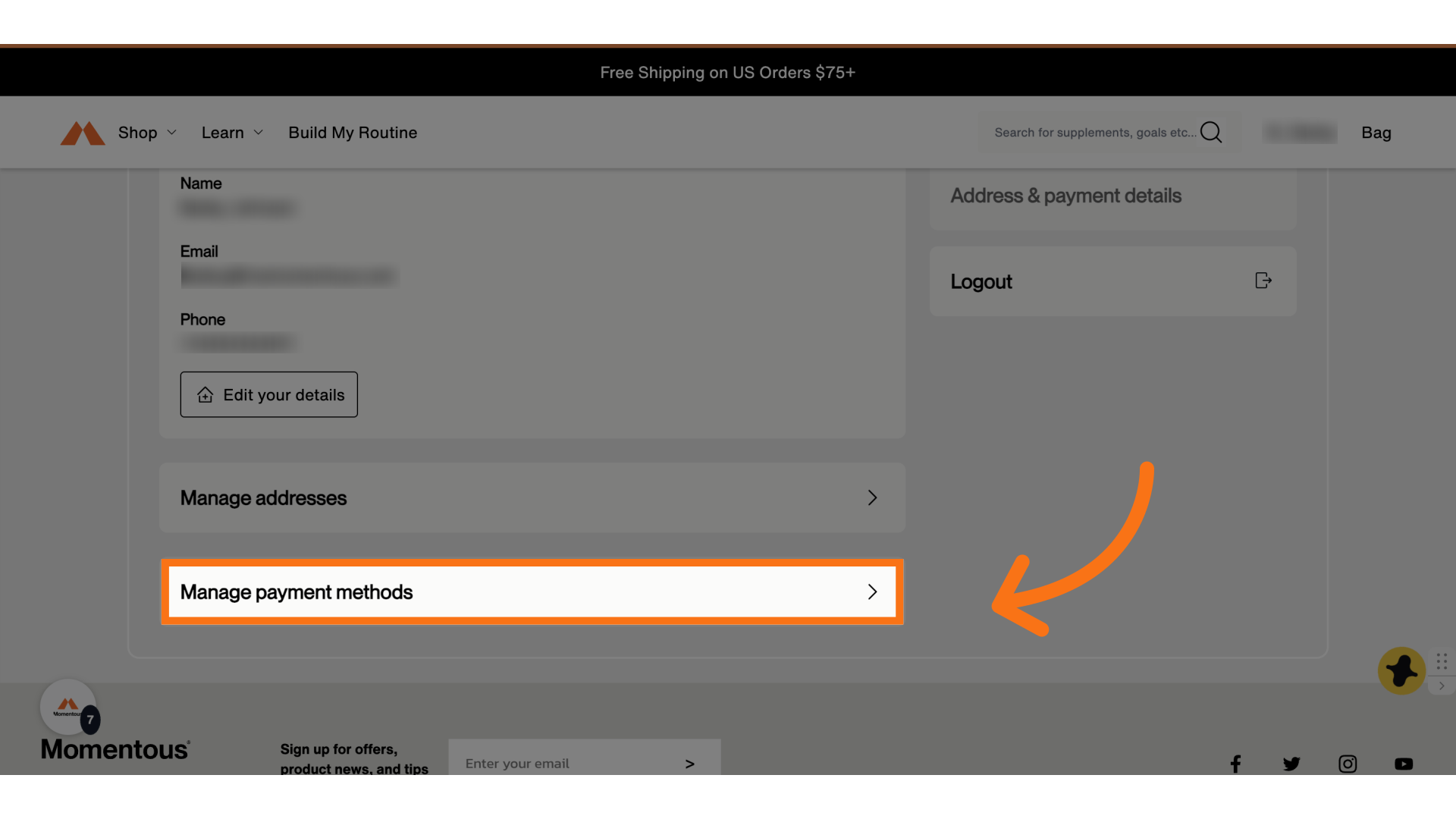
5. Click "Add payment method"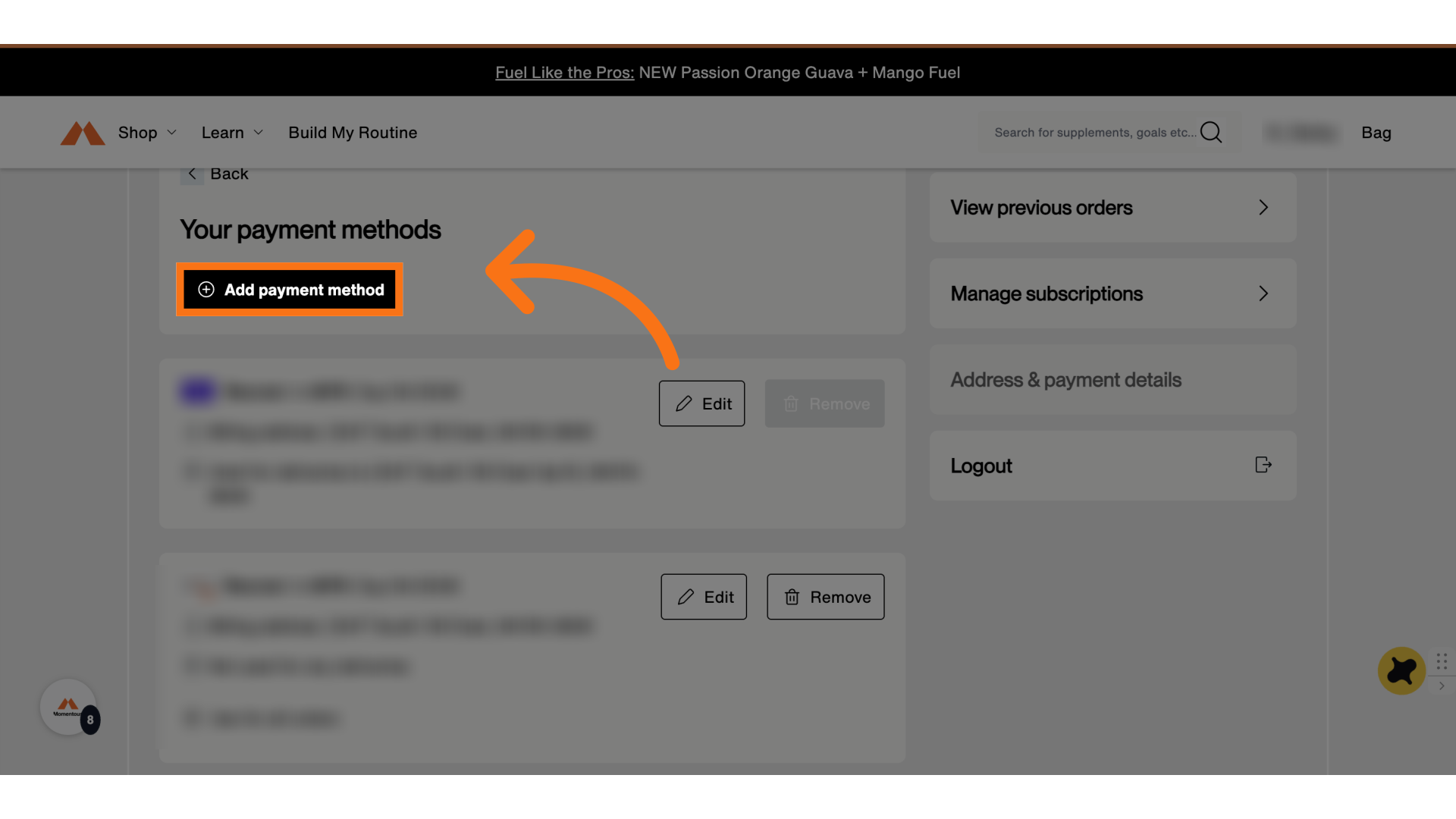
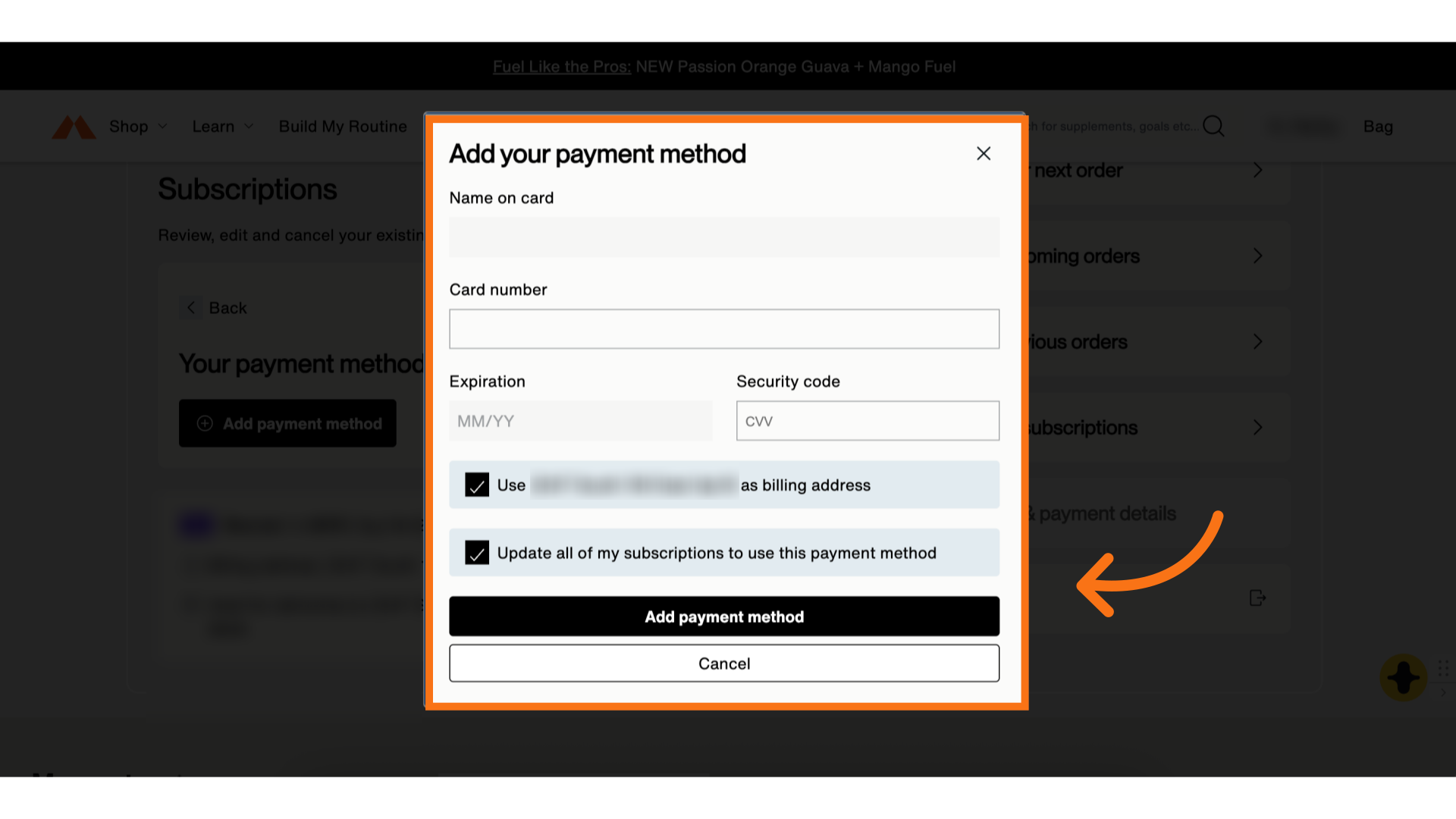
6. Fill out all the information then select "add payment method"
Select the billing address and subscriptions option then select add payment method.
7. You will see your new payment method here
Here, you can now remove other payment options.